Overview
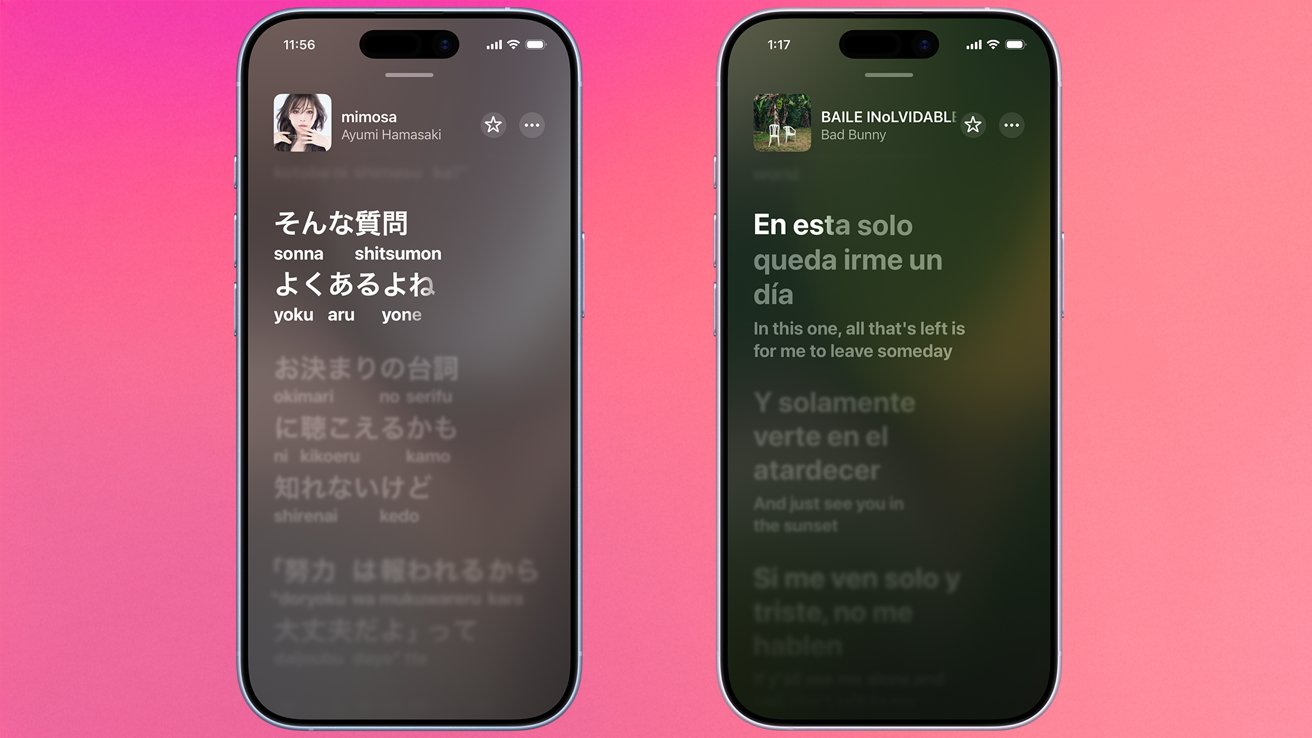
With the release of iOS 26, Apple Music has evolved beyond a simple streaming service into a language-learning and karaoke companion. While the ability to view synchronized lyrics has been a staple for years, the new Lyric Translation and Lyric Pronunciation features open up a world of foreign-language music. Whether you're trying to sing along to a K‑pop hit, a French chanson, or an Italian opera, these tools provide real-time translations and phonetic guides right inside the Now Playing screen. This guide walks you through everything you need to know—from setup to common pitfalls—so you can unlock the full potential of Apple Music’s linguistic capabilities.
Prerequisites
Before diving in, ensure you have the following:
- An iPhone or iPad running iOS 26 (or later).
- An active Apple Music subscription (individual, family, or student plan).
- A music library containing songs with lyrics available in Apple Music’s database—note that not all tracks support translation or pronunciation yet.
- Stable internet connection for initial downloads; translations and pronunciation guides may be cached after first use.
Step-by-Step Instructions
1. Enabling Lyric Translation
- Open the Music app and start playing a song that has lyrics. Look for the lyrics icon (a quotation mark “ ” inside a square) at the bottom of the Now Playing screen; tap it to display the synchronized lyrics.
- While the lyrics are shown, tap the context menu (three dots “…” in a circle) located near the top‑right corner of the lyrics panel.
- From the menu, select Translate Lyrics. If the song supports translation, a language picker will appear. Choose your desired target language (e.g., English from Korean).
- The lyrics will now be displayed in your chosen language, line‑by‑line, directly below or alongside the original text. You can toggle translation on/off by tapping the same menu button again.
Note: Translations are automatically generated and may not be 100% accurate, especially for idiomatic expressions. Apple uses a combination of machine learning and human‑curated databases.
2. Accessing Lyric Pronunciation
- With the same song playing and lyrics visible, ensure you are viewing the original (untranslated) lyrics. Pronunciation guides only appear when the original script is shown.
- Tap the context menu (three dots) again, but this time choose Show Pronunciation. A phonetic representation of each line will appear—typically using the International Phonetic Alphabet (IPA) or a simplified romanization, depending on the language.
- Sing along while reading the phonetics. The playback auto‑scrolls to keep the pronunciation synced with the music.
- To hide pronunciation, tap the menu and deselect Show Pronunciation.
Tip: For languages with non‑Latin scripts (e.g., Japanese, Arabic, Thai), the pronunciation guide often uses a standard romanization system (like Hepburn for Japanese). You can switch between translation and pronunciation—but not both simultaneously—by repeating the menu selections.

Common Mistakes and Troubleshooting
“I can’t find the Translate button.”
The translation feature is only available for songs that Apple has indexed with multilingual metadata. If you don’t see the option, the song likely lacks a translation database entry. Try searching for an official version from the same region (e.g., the original Korean release of a K‑pop track).
“Pronunciation is showing gibberish.”
Some songs have missing or incomplete phonetic data. This is rare but can happen with obscure or user‑uploaded tracks. Ensure your iOS is updated to the latest version of iOS 26, as Apple occasionally patches lyric databases.
“I see translation but no pronunciation (or vice versa).”
You cannot use both at the same time. If you’ve enabled translation, pronunciation is hidden. Tap the menu again and disable translation to see pronunciation options.
“Lyrics aren’t scrolling synchronously.”
Resync by tapping the lyrics panel and scrolling manually to the current time. The feature relies on timestamps embedded in the track; poor network or corrupted metadata can cause desync. Try restarting the song.
Summary
Apple Music’s Lyric Translation and Pronunciation features transform your listening experience into an interactive language tool. With iOS 26, you can instantly see and read translations for foreign lyrics, plus obtain phonetic guides to sing along correctly. The setup requires only a subscription and an updated device—no extra apps. While not every song supports both features, the majority of popular international tracks do. By following the steps above and avoiding common pitfalls, you’ll be ready to belt out your favorite global hits with confidence.