Overview
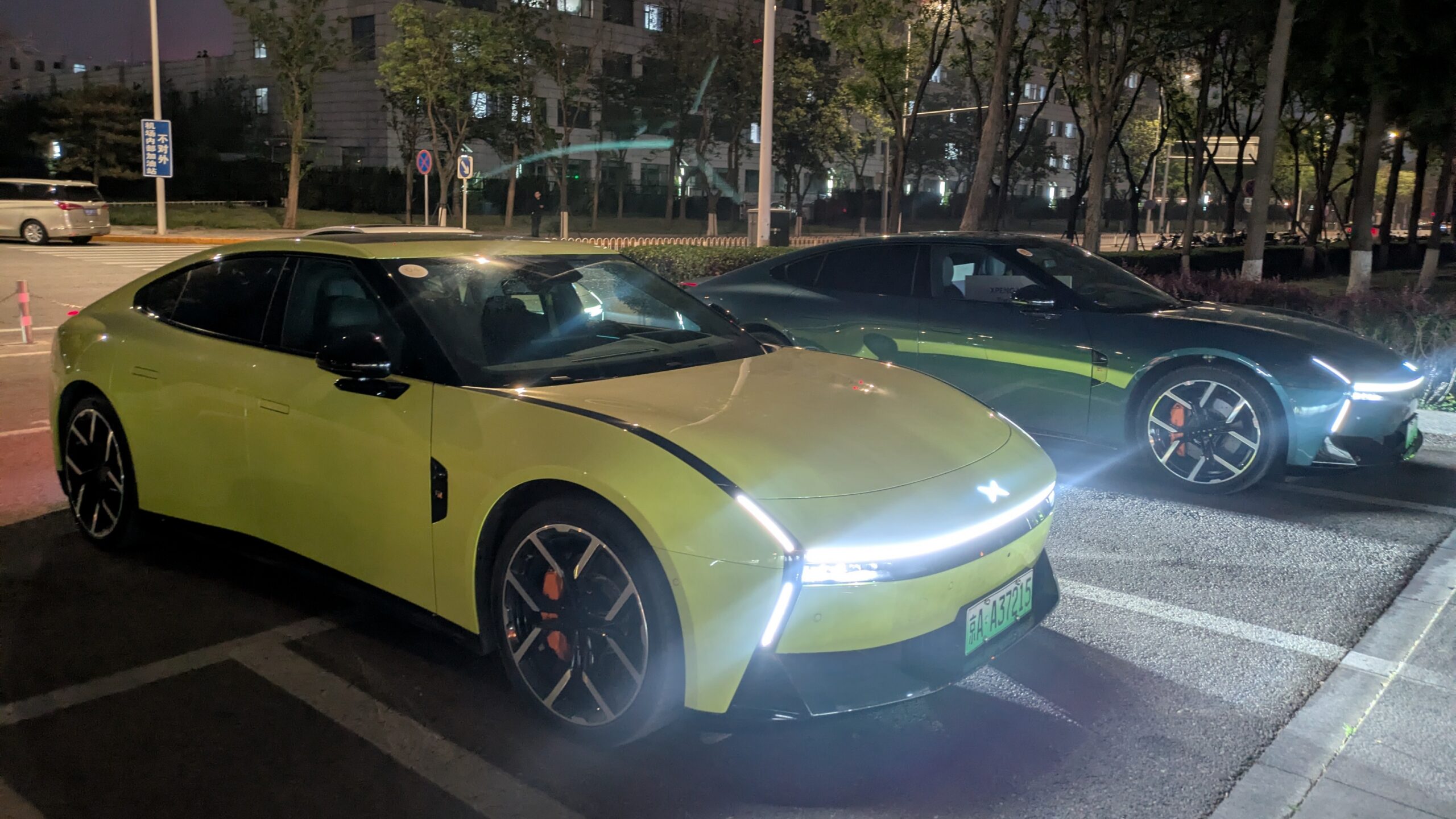
XPENG's VLA 2.0 (Vision-Language-Action) system represents a leap forward in autonomous driving technology. During a recent visit to China, I had the chance to test this advanced ADAS on the Next P7 Ultra—a striking evolution of the earlier P7 that I sampled in November 2023. While the previous version impressed, VLA 2.0 refines the experience into something both sportier and more confident. This tutorial walks you through everything you need to know: from the core concepts and prerequisites to step-by-step usage, common pitfalls, and a summary of key takeaways. Whether you're a seasoned EV enthusiast or a new adopter, this guide will help you get the most out of XPENG's latest autonomous drive.
Prerequisites
Vehicle and Software Requirements
To use VLA 2.0, you need a XPENG Next P7 Ultra equipped with the appropriate hardware and software. Ensure the following:
- XPENG Next P7 Ultra – Only this model supports VLA 2.0 at launch. Earlier P7+ models run VLA 1.0.
- Software version – Update to XPENG OS 4.6.x or later. Check via the central touchscreen: Settings > System > Software Update.
- Active XPENG Intelligent Driving subscription – VLA 2.0 is part of the service; verify via the app or in-car menu.
- Clear sensor path – Cameras, LiDAR, and radars must be unobstructed (no snow, mud, or stickers). The car will notify you if a sensor is blocked.
Driver Readiness
Even with advanced autonomy, the driver remains responsible. Before engaging VLA 2.0:
- Buckle seatbelt – The system won't activate without it.
- Hands on wheel (but not gripping aggressively) – VLA 2.0 requires occasional light torque to confirm driver presence.
- Familiarize with controls – The main activation is via the steering wheel button (ADAS button). Practice in a safe area first.
Environmental Conditions
VLA 2.0 works best on mapped highways and city roads with clear lane markings. Avoid using it in:
- Heavy rain, snow, or fog that impairs camera visibility.
- Construction zones without updated map data.
- Tunnels longer than 5 km (LiDAR performance may degrade).
Step-by-Step Instructions
1. Preparing for a Drive
Start your journey by entering a destination via the XPENG navigation. VLA 2.0 uses the planned route to anticipate turns and lane changes. Tap the Navigation icon on the main screen, type your address, and confirm. If the route includes highway segments, the system will highlight them as “VLA-enabled” on the map.
2. Engaging VLA 2.0
Once on a supported road (typically a highway or expressway), press the ADAS button on the left side of the steering wheel. A chime sounds and the instrument cluster shows a steering wheel icon, indicating VLA 2.0 is active. You'll also see a digital render of the surroundings on the center screen—cars, trucks, pedestrians, and lane lines.
Tip: If the icon is gray, the system is not ready. Check for sensor obstructions or a pending software update.
3. Adjusting Driving Style
VLA 2.0 offers a “Sporty” profile (the default) and a “Comfort” profile. Sporty delivers quicker acceleration, earlier lane changes, and more assertive cornering—true to XPENG’s sporty heritage. To switch:
- Tap the Settings gear icon on the top-right of the ADAS display.
- Select Driving Profile.
- Choose Sporty or Comfort.
Use Sporty when you want a dynamic drive; switch to Comfort for smoother rides in traffic.
4. Navigating Intersections and Exits
VLA 2.0 handles highway interchanges, ramps, and lane splits autonomously. When approaching an exit, the system slows down and signals well in advance. You can override by touching the steering wheel or tapping the brake. The car will resume VLA mode after the maneuver if you don't intervene fully.
5. Changing Lanes
To change lanes, activate the turn signal in the desired direction. VLA 2.0 checks mirrors and blind spots, then smoothly merges. You can also let the system decide: in “Auto Lane Change” mode (enabled by default), it will propose lane changes to maintain speed or follow the navigation route. Accept by tapping the Proceed button on the screen or gently turning the wheel.
6. Handling Traffic Lights and Stop Signs (City Driving)
On city streets that are mapped and supported, VLA 2.0 can recognize traffic lights and stop signs. It stops automatically and resumes when the light turns green or the junction is clear. The car communicates its intentions with a visual indicator on the HUD (head-up display).
Important: Always pay attention, as the system may occasionally misinterpret a temporary traffic light (e.g., in work zones). Be ready to take over.
7. Exiting VLA 2.0
To disengage VLA 2.0, press the ADAS button again, tap the brake pedal, or pull the steering wheel forcefully (if urgent). A gentle tug will deactivate only the steering assist; keep pressing ADAS to disable both steering and speed control. The car will revert to manual driving and a voice prompt will confirm exit.
Common Mistakes
- Assuming full autonomy – VLA 2.0 is a Level 2+ (Level 3 in some markets) system. You must keep your hands on the wheel and eyes on the road. Many drivers mistakenly treat it as self-driving.
- Ignoring sensor warnings – If you see “Sensor Blocked” or “VLA Unavailable,” don’t force activation. Clean the sensors and try again.
- Overriding without re-engaging – After pressing the brake or taking the wheel, the system disengages. You must press ADAS again to re-enable it. Expecting it to come back automatically is a common error.
- Using Sporty profile in heavy traffic – Sporty mode’s quicker acceleration can be jarring in stop-and-go. Switch to Comfort for smoother operation.
- Not updating maps – VLA 2.0 relies on high-definition map data. If your maps are outdated, the system may fail to recognize new road layouts. Update monthly via OTA or at a service center.
Summary
XPENG’s VLA 2.0 transforms the Next P7 Ultra into a vehicle that can confidently drive itself on highways and city roads—all while preserving a sporty, engaging feel. By understanding the prerequisites, following the step-by-step activation process, and avoiding common pitfalls, you can enjoy a seamless autonomous experience. Always remember: VLA 2.0 is a driver assistance system, not a chauffeur. Stay alert, and you’ll unlock the full potential of truly smart mobility. Whether you’re commuting or exploring, the sporty drive of XPENG’s latest ADAS technology awaits.